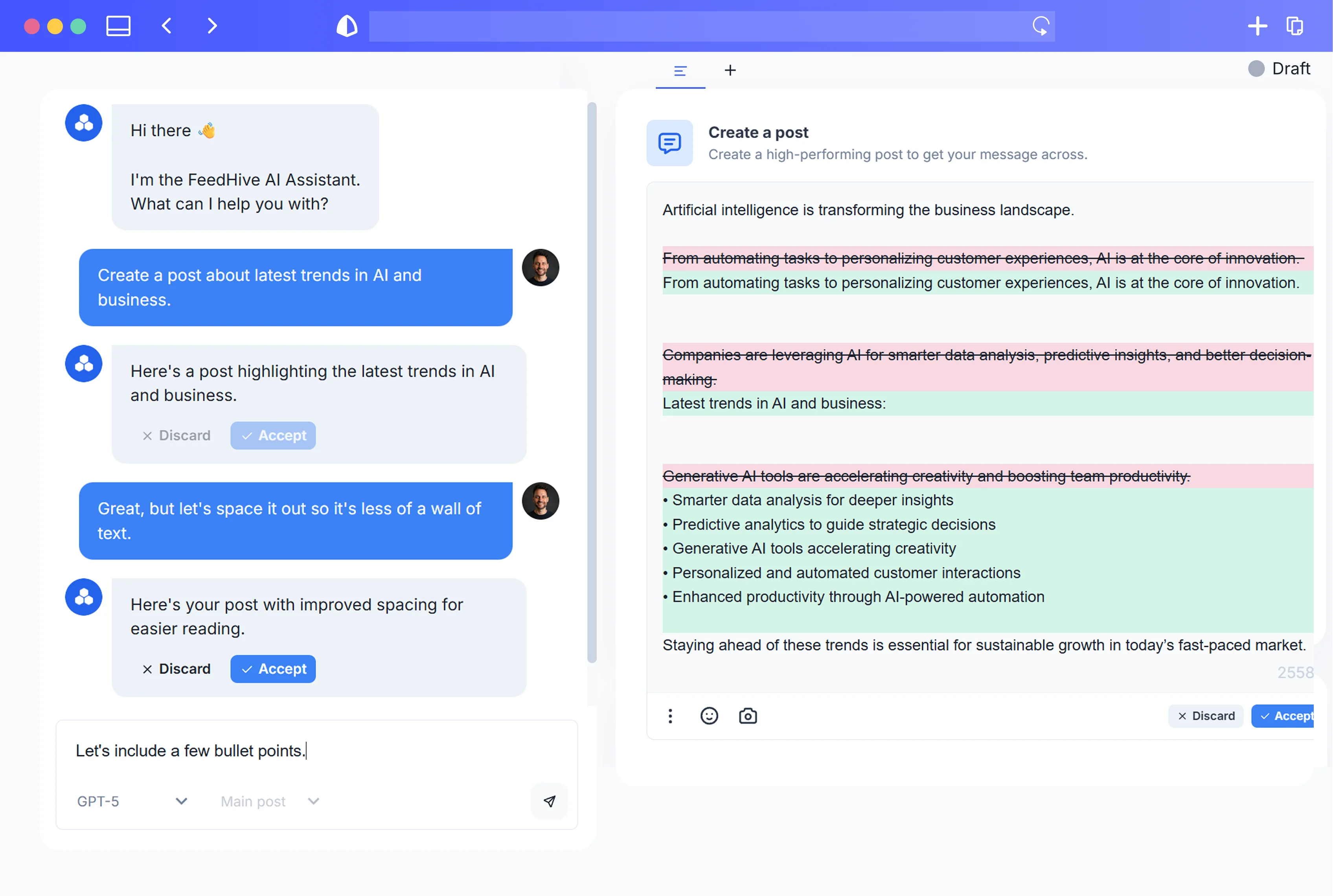

Short answer: put the sign-off in your scheduler, not in the chat window. When Claude or another assistant asks whether it may run a tool, it is asking permission for an action. It is not asking whether a teammate has read the copy. For a small team, the setup that holds up is simple: connect the agent with a workspace-scoped key, turn on the workspace approval workflow, give approval rights to named people, and check one test post's approval state before you trust the gate with real content.
Three gates, three different questions
An agent that schedules social posts usually passes through three checkpoints. They look similar, but each one answers a different question.

The client prompt. Buffer's MCP guide notes that most MCP clients ask you to approve write tools before they run, and it recommends leaving those prompts on. That is good advice. It stops surprise actions. The person clicking Allow, however, is whoever happens to be in the chat, and nothing about the click stays with the post.
The MCP confirmation flag. FeedHive's MCP server requires confirm_scheduling: true to schedule, confirm_update: true on every post update and confirm: true on deletes. These flags make the model state its intent explicitly. The docs are clear that they are MCP safeguards and are not sent to the REST API.
The scheduler's approval workflow. This is the only gate that lives on the post itself. Your team can see it in the calendar, and an agent or script can read it back. If you want a human sign-off, this is where it belongs.
How FeedHive's approval workflow behaves
FeedHive's approval workflow guide describes a per-workspace switch on the Settings page. Once it is on, the Teams page gains a “Can approve” column. Only the workspace owner can grant that right, and it is independent of the member's role, so you can make a Member an approver without promoting anyone.
From then on, scheduling or planning a post puts it into a needs-approval state. Pending posts show a purple border on the calendar. An approver can approve from the calendar, from the Compose page, or in bulk from the Needs approval tab on the Posts page.
Two rules matter most when an agent is involved:
- Edits reset approval. If someone without approval rights edits an approved post, it moves back to draft and needs approval again. A late change cannot ride through on an earlier sign-off.
- Switching it off is not retroactive. Posts already pending stay pending, but new posts schedule directly. Treat the setting as part of your agent setup, not a temporary toggle.
The API exposes the same state. Every post object carries an approval field whose status is approved, pending or not_required. Note that is_approved is true for both approved and not_required. When you need to know whether a person actually signed off, check status, not the boolean. The MCP guide also says that in approval-required workspaces, a scheduling request may be stored pending approval rather than scheduled outright.
Scope the key before you connect the agent
An agent can only stay inside your approval rules if it is working in the space where those rules apply. FeedHive offers two kinds of key, according to its API getting-started guide: an account key under Settings, Account, and a workspace key under Settings, Workspace. Its Claude connector guide recommends the workspace key for a workspace-scoped connection. It also warns that on Claude Team or Enterprise, a shared connector with fixed credentials grants access under that key, so the key should be appropriately limited.
The practical setup is one workspace per brand or client, approval switched on there, and the agent connected with that workspace's key. The connection is then scoped to that workspace rather than to your whole account.
Buffer works differently. Its authentication guide says an API key “acts on behalf of your account only,” can access all organizations and channels in the account, and has no per-organization scoping at this time. If you manage several organizations in Buffer, one key sees all of them.
FeedHive and Buffer put the gate in different places

In Buffer, approval is a permission attached to a person. Its support article says approving drafts is available on the Team plan. Users with Needs Approval access create drafts and request approval. The account owner and users with Full Access review them in the Approvals tab, and can approve or reject them back to drafts. Owners and Full Access users cannot request approval on their own drafts. Buffer also sends approval-request emails for drafts created through its API, which is useful when an agent does the drafting.
That model maps cleanly onto a team where contractors draft and the owner approves. The catch for agents is that the gate follows the account behind the key. Buffer's MCP create_post tool schedules or publishes a post, with a saveToDraft option to keep it as a draft. If the key belongs to an owner or Full Access user, the human gate depends on the agent choosing the draft path and on the client prompt. If you stay on Buffer, consider connecting agents from a Needs Approval user's account so that drafts go through the Approvals tab.
FeedHive attaches the gate to the workspace instead. If you want every scheduled post in a brand's workspace to wait for a named approver, that is the more direct fit. If your team already runs on Buffer's Team plan and your approval needs are about which person may publish, Buffer's role-based model is a reasonable choice to keep.
What can still go around the gate
- Publishing triggers. Configured FeedHive automation triggers appear as MCP tools, and the docs warn that a trigger may publish content. Review which triggers exist in a workspace before connecting an agent, and require explicit consent before any publishing trigger runs.
- Turning the workflow off. As noted above, new posts schedule directly once approval is disabled.
- An approver's own key. FeedHive's docs do not say whether a post scheduled with a key belonging to someone who can approve skips the pending state. Do not assume either way. Test it, as below.
A 15-minute test before you trust it
- In the workspace you will connect, enable the approval workflow in Settings and tick “Can approve” for the right people on the Teams page.
- Copy the workspace API key into your agent client's private credential settings, never into the chat itself.
- Ask the agent to list social accounts, then create one draft. Check in the app that it is still a draft.
- Ask the agent to schedule that draft several days out. Then have it read the post back with
feedhive_posts_getand reportapproval.status. You wantpending, and a purple border on the calendar. - Approve it from the calendar, read it back again, and confirm the status is
approved. Then delete the test post.
If step 4 returns not_required or approved, the gate does not cover that key. Fix the workspace or the key before any real content goes through. If a scheduling call times out during the test, read the post back before trying again, as covered in our guide to checking before you retry.
The short version
Let the agent draft and propose. Let the scheduler hold the decision. A client prompt and an MCP flag are useful brakes on the action, but the approval that counts is the one recorded on the post by a named teammate. For the wider platform choice, see our FeedHive, Buffer and Postiz comparison. For the human side of review, see FeedHive's collaboration features, and for agent access, the MCP server overview.