
The problem: your content doesn’t need more “ideas” — it needs fewer manual steps
Most teams don’t struggle with what to post.
They struggle with the annoying glue work:
You publish a blog post → you copy the link into Slack → you open your scheduler → you paste the title → you format 5 platform versions → you upload images again → you forget to post it on X → it’s Friday → you hate your life.
FeedHive Triggers exist to delete that entire checklist.
What is a FeedHive Trigger?
A Trigger is a URL you can call to make FeedHive do something.
Think: a webhook endpoint that creates/publishes social posts.
In FeedHive, a trigger can be configured to:
- Publish a draft (you pre-write it once, then publish on demand)
- Create a draft (you send text/media/variables, FeedHive creates it)
- Create & publish a post (create it and publish immediately or at a scheduled time)
Under the hood, you’ll usually trigger it via POST with JSON (recommended). GET still exists for legacy setups.
The mental model that makes this click
If you remember just one thing, make it this:
Your other tools detect events. FeedHive ships posts. Triggers connect the two.
- Event layer: Zapier, Make, n8n, Airtable, Notion, your own backend, Stripe, RSS, GitHub, etc.
- Execution layer: FeedHive (drafts, templates, media, scheduling, publishing)
Once you have a Trigger, anything that can send a webhook can create/publish social content.
9 automation workflows you can steal today
I’ll keep these practical. Each workflow below is something you can build in 15–30 minutes.
1) New blog post → create a draft from a template (the classic)
Use when: you want consistent promos for every article without rewriting the structure every time.
How it works:
- Create a FeedHive Trigger with Create draft
- Pick a template (Assets → User Templates)
- Add template variables like:
[[title-of-blogpost]][[excerpt-of-blogpost]][[link-to-blogpost]]
- When your CMS publishes, Zapier/Make calls the Trigger URL and passes those variables.
Result: a draft appears in FeedHive with the right structure, ready for approval.
2) New blog post → create drafts for multiple platforms (without copy/paste)
Use when: you want one “source” event to generate multiple posts (LinkedIn, X, Instagram, etc.) but still review them.
How it works:
- Same as #1, but you create one Trigger per “post type” template:
- LinkedIn longform template
- X short template
- Instagram caption template
- Your automation calls all triggers.
Result: three drafts, each already formatted for the platform.
3) New YouTube upload → auto-create promo posts (with the right fields)
Use when: you publish videos and want instant distribution.
How it works:
- Trigger action: Create draft (or Create & Publish if you’re brave)
- Send:
title(platform-specific variable)link(platform-specific variable)text(caption)
Result: your video promotion is ready the minute YouTube is live.
4) New podcast episode → schedule a week of promos
Use when: you want more than one “we have a new episode” post.
How it works:
- Create multiple triggers (or reuse one template with a “variant” variable)
- Your automation calls the trigger 3–5 times with different
textor different template variables - If you use Create & Publish, you can also pass
scheduledtimes
Result: a full mini-campaign, not a single post.
5) New Stripe payment → create a “social proof” draft for approval
Use when: you want to celebrate wins without accidentally leaking customer info.
How it works:
- Event: Stripe “payment succeeded”
- Trigger: Create draft
- Pass sanitized variables (plan name, country, maybe company size) — not personal data
- Route the draft to a label like “Needs approval”
Result: you get the draft when the moment is fresh, but you still control what goes public.
6) New testimonial in Airtable/Notion → draft is created automatically
Use when: testimonials show up randomly and get lost.
How it works:
- Event: record added/updated in Airtable/Notion
- Trigger: Create draft using a testimonial template
- Variables:
[[quote]],[[name]],[[role]],[[company]],[[link]]
Result: every testimonial becomes a post candidate (and you stop wasting good quotes).
7) New job opening → publish a hiring post everywhere
Use when: you want hiring to be a one-click workflow.
How it works:
- Event: new job posting created (Greenhouse/Lever/Notion/etc.)
- Trigger: Create & Publish
- Pass
text,link, and optionallymedia_urls
Result: instant distribution, zero coordination overhead.
8) GitHub release / changelog update → draft a “what shipped” post
Use when: you ship often and marketing can’t keep up.
How it works:
- Event: new GitHub release
- Trigger: Create draft
- Template variables:
[[version]],[[highlights]],[[link]]
Result: marketing gets a ready-to-edit draft for every release.
9) “AI Trigger” mode: send a prompt instead of the post
Use when: you want automation to generate first drafts, but still keep your voice.
How it works:
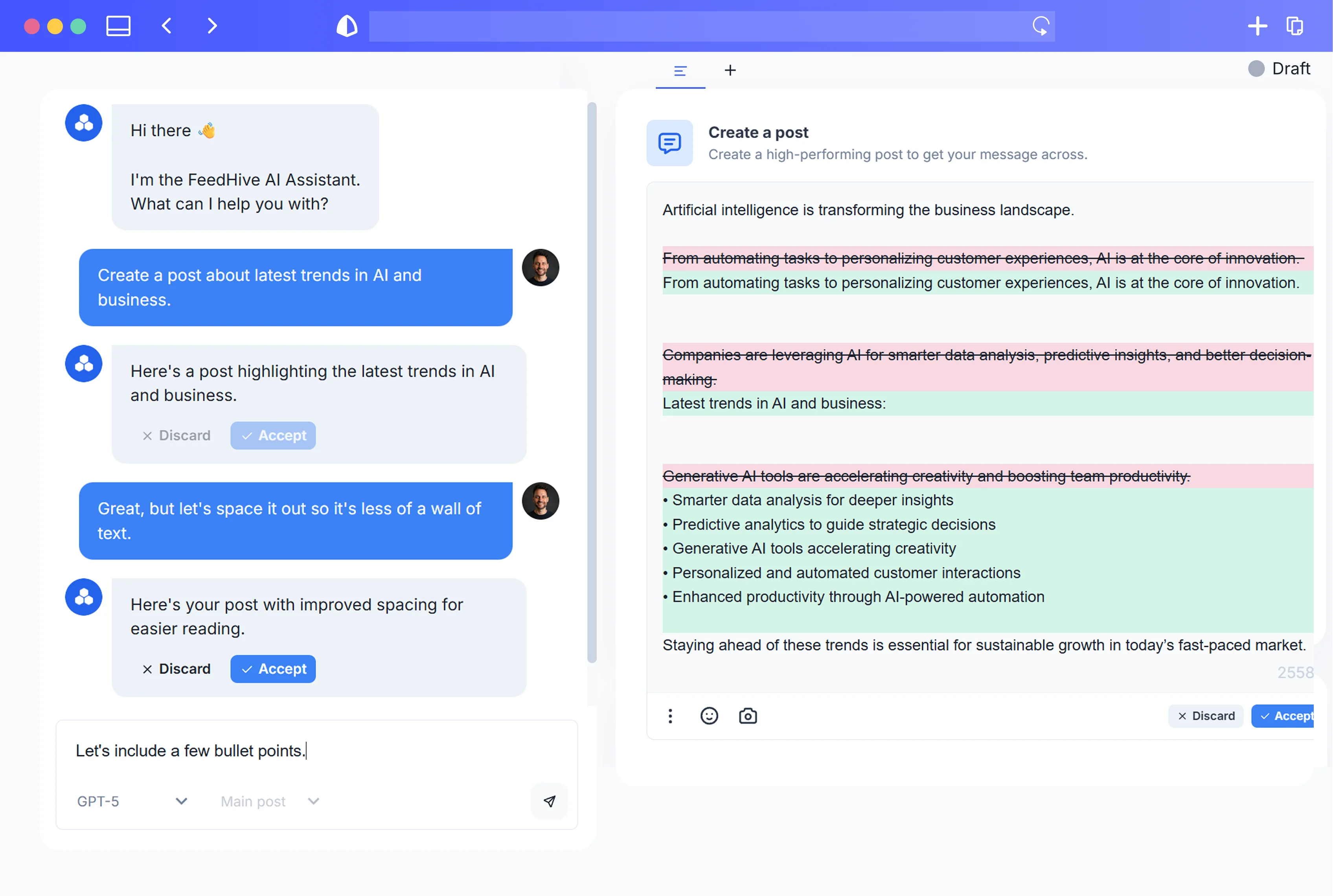
- When creating a trigger in FeedHive, select an AI model (“Write your post with AI”)
- Instead of
text, you send aprompt
Example prompt idea:
“Write a short LinkedIn post announcing our new blog article. Keep it punchy, no corporate fluff. Include 1 hook, 2 key takeaways, and a soft CTA. Use this info: title={{title}}, excerpt={{excerpt}}, link={{link}}.”
Result: your workflow creates drafts that don’t start from a blank page.
How to actually trigger it (the simple version)
FeedHive triggers support:
- POST (recommended): JSON in the request body
- GET (legacy): query parameters (deprecated for new setups)
POST example
curl -X POST https://api.feedhive.com/triggers/xxxxx \
 -d '{
  "text": "Your post content here",
  "scheduled": "2024-01-15T10:00:00Z",
  "media_urls": ["https://example.com/image1.jpg", "https://example.com/image2.jpg"]
 }'
A few practical notes:
textis required unless a template is assigned to the trigger that provides the post content.scheduledis only used with “Create & Publish”.media_urlsis the easiest way to attach images/videos from other systems.
Using template variables
In your template, you can use custom variables like [[link-to-blogpost]].
When triggering, send them as JSON fields in the POST body. FeedHive will replace them at runtime.
Best practices (so automation doesn’t turn into chaos)
Start here:
- Automate draft creation first, then graduate to auto-publish once you trust the workflow.
- Use templates as your “single source of truth” so your automation stays consistent.
- Keep webhook payloads clean. Don’t send personal customer data.
- If you run lots of workflows, add labels so drafts don’t become a junk drawer.
One more thing: Triggers aren’t one-way
If you want automation in the other direction (FeedHive → your tools), that’s what Notifications are for: FeedHive can call a webhook when something happens (like a post going live).
Want to build your first one?
If you want the step-by-step setup, start here:
- https://docs.feedhive.com/triggers/introduction
- https://docs.feedhive.com/triggers/how-to-trigger
- https://docs.feedhive.com/triggers/reference
Once you set up your first Trigger, you’ll never want to go back to copy/paste workflows again.