Short answer: to schedule a LinkedIn post for free, click Start a post, write it, click the clock icon in the composer, pick a date and time, click Next and then Schedule. You can schedule from 10 minutes to 3 months ahead, and find your queue by clicking the clock icon again and choosing View all scheduled posts. How far ahead you schedule matters more than whether you do: in a random sample of 8,000 LinkedIn posts published through FeedHive, posts written up to a week before they went out got about 5% to 12% more impressions than the account's typical post, while posts written one to three months ahead got about 10% fewer.
This guide covers every way to schedule LinkedIn posts in 2026: on desktop, in the mobile app, for a company Page and with a scheduler. It also covers how to edit or delete a scheduled post, why the clock icon sometimes goes missing, and what our own data says about scheduled posts and reach.
Which way to schedule LinkedIn posts
LinkedIn's built-in scheduler is free and works for both personal profiles and company Pages. Pick the method based on how often you post and who else is involved:
| Method | Cost | How far ahead | Best for |
|---|---|---|---|
| LinkedIn on desktop | Free | 10 minutes to 3 months | One profile, a post or two a week |
| LinkedIn app on iPhone or Android | Free | 10 minutes to 3 months | Quick one-off posts on the go |
| Company Page admin view | Free | Up to 3 months | Page admins posting for a brand |
| Social media scheduler | Paid plans, usually with a free trial | Depends on the tool | A weekly calendar, profile plus Page, teams and other networks |
The free scheduler is genuinely good for single posts. Its gaps are planning: once a post is scheduled it disappears into a list you only reach through the composer, there is no calendar view, and every profile and Page keeps its own separate queue.
How to schedule a LinkedIn post on desktop (free)
These steps follow LinkedIn's help page on scheduling posts:
- Click Start a post at the top of your LinkedIn homepage.
- Write the post in the "What do you want to talk about?" field and add your image, video or other media.
- Click the clock icon in the lower-right corner of the composer.
- Pick the date and time. The dropdown offers 30-minute steps, but you can type an exact time such as 9:10.
- Click Next. The scheduled date and time now show above the post.
- Click Schedule. A confirmation appears in the lower-left corner, and the post publishes on its own at the chosen time.
Two details catch people out. First, the window is 10 minutes to 3 months from now, so you cannot queue a post for a launch four months away. Second, LinkedIn converts the time to UTC based on your device's time zone. If your audience lives somewhere else, convert the time before you pick it, or change your device's time zone while you plan.
LinkedIn lists events and job posts as types that cannot be scheduled. If the clock icon disappears while you build a post, the content you added is the likely reason.
How to schedule LinkedIn posts on iPhone and Android
The LinkedIn app has the same scheduler, with the clock icon in a different spot:
- Tap Post in the navigation bar at the bottom of the app.
- Write your post in the "Share your thoughts..." field and add any media.
- Tap the clock icon in the upper-right corner.
- Choose the date and time, tap Next, then tap Schedule.
To see your queue on mobile, tap Post, tap the clock icon and then View all. The same 10-minute to 3-month window and device time zone rule apply. The app is fine for a one-off post, but planning a full week on a phone screen gets fiddly fast.
How to schedule posts on a LinkedIn company Page
Company Pages use the same scheduler from the Page's admin view. You need to be a super admin or content admin of the Page:
- Open your Page and switch to the admin view.
- Click Start a post (or Create) and write the post as the Page.
- Click the clock icon, choose the date and time, click Next and then Schedule.
A few Page rules, described by Nanna Dahl of LinkedIn Marketing Solutions when Page scheduling launched: Page posts need at least one hour of notice and can go up to three months ahead, admins can view, reschedule or delete posts scheduled by other admins, and a scheduled post cannot be promoted as an ad until it is live. If an admin is removed from the Page, their scheduled posts move to the admin who removed them.
The native scheduler has no shared calendar for a Page and the people behind it. If you post on your own profile and your company Page, you are managing two queues in two places. That is the most common reason teams move to a scheduler.
How to see, edit or delete scheduled LinkedIn posts
- Click Start a post on your homepage. If you have posts in the queue, the clock icon shows a badge with the number.
- Click the clock icon, then View all scheduled posts in the lower-left corner.
- Click a post to preview it. To change it, click the More icon (three dots) and choose Edit post or Modify schedule. To remove it, click the Delete icon and confirm.
Many older guides say you cannot edit a scheduled LinkedIn post and have to delete and recreate it. That is out of date: LinkedIn's current help page lists both Edit post and Modify schedule for scheduled posts.
Do scheduled LinkedIn posts get less reach?
Scheduling itself does not cost you reach. How long a post sits in the queue does. We checked this against FeedHive's own data: every post's impressions were compared with the typical post from the same account, and posts were grouped by how long before publishing they were written.

- Scheduled up to a week ahead: above the account's typical post. Posts going out within a day got about 12% more impressions, and posts scheduled one to seven days ahead about 4% to 7% more. This is where a third of all posts in our sample sat, and it is the sweet spot for batching.
- Scheduled one to four weeks ahead: slightly below typical, between 1% and 5% fewer impressions across our samples. Small, but consistently on the wrong side of zero.
- Scheduled one to three months ahead: about 10% fewer impressions in both samples. That is the far end of LinkedIn's own 3-month window, and it showed the clearest drop.
- Written and published within the hour: the highest group, 21% to 29% above typical. These are mostly reactive posts about something that just happened, so part of the lift comes from the topic, not the timing.
- Queue slots versus picked times: posts dropped into a recurring posting slot showed no consistent difference from posts given a hand-picked time.
LinkedIn does not appear to hold a post back because it was scheduled. What a post loses in the queue is freshness: a take on this week's news, a reference to a recent project or a hiring update reads a little staler every week it waits. The pattern was clearest on personal profiles. Company Page results pointed the same way but varied too much between samples to draw a separate conclusion.
What this means for your routine:
- Batch a week at a time, not a month. A Monday session that fills the next five to seven days keeps you consistent without letting posts go stale.
- Keep a backlog, but reread before it ships. Drafts written weeks ahead are fine as a bank. Give each one a quick refresh in the week it goes out, so it reads like it was written that week.
- Leave room for live posts. The same-hour posts did best in our data. A calendar with a few open spots for news and reactions beats a wall of evergreen posts.
How we measured this
We drew a random sample of 8,000 LinkedIn posts published through FeedHive between July 13 and November 5, 2026, using each post's latest impressions count captured at least three days after publishing, and repeated the analysis on a second, independent random sample and on the full set of qualifying posts. Lead time is the time between creating a post in FeedHive and its publication. To stop big accounts from dominating, every post was compared with its own account's median impressions, accounts with too few posts in the sample or very low typical impressions were excluded, and results were averaged per account. Company Page video and multi-image posts were left out because LinkedIn does not return impressions for them. All data is aggregated and anonymised. The ranges in this guide show how much the results moved between samples.
How to schedule LinkedIn posts with a scheduler
LinkedIn's scheduler is enough for one profile and a post or two a week. A scheduler earns its place when you want a calendar of the whole week, post on your profile and a company Page, need a teammate's sign-off, or share the same idea on LinkedIn and other networks. Here is how it works in FeedHive's LinkedIn scheduler:
- Connect your LinkedIn profile and company Page, plus any other networks you post to.
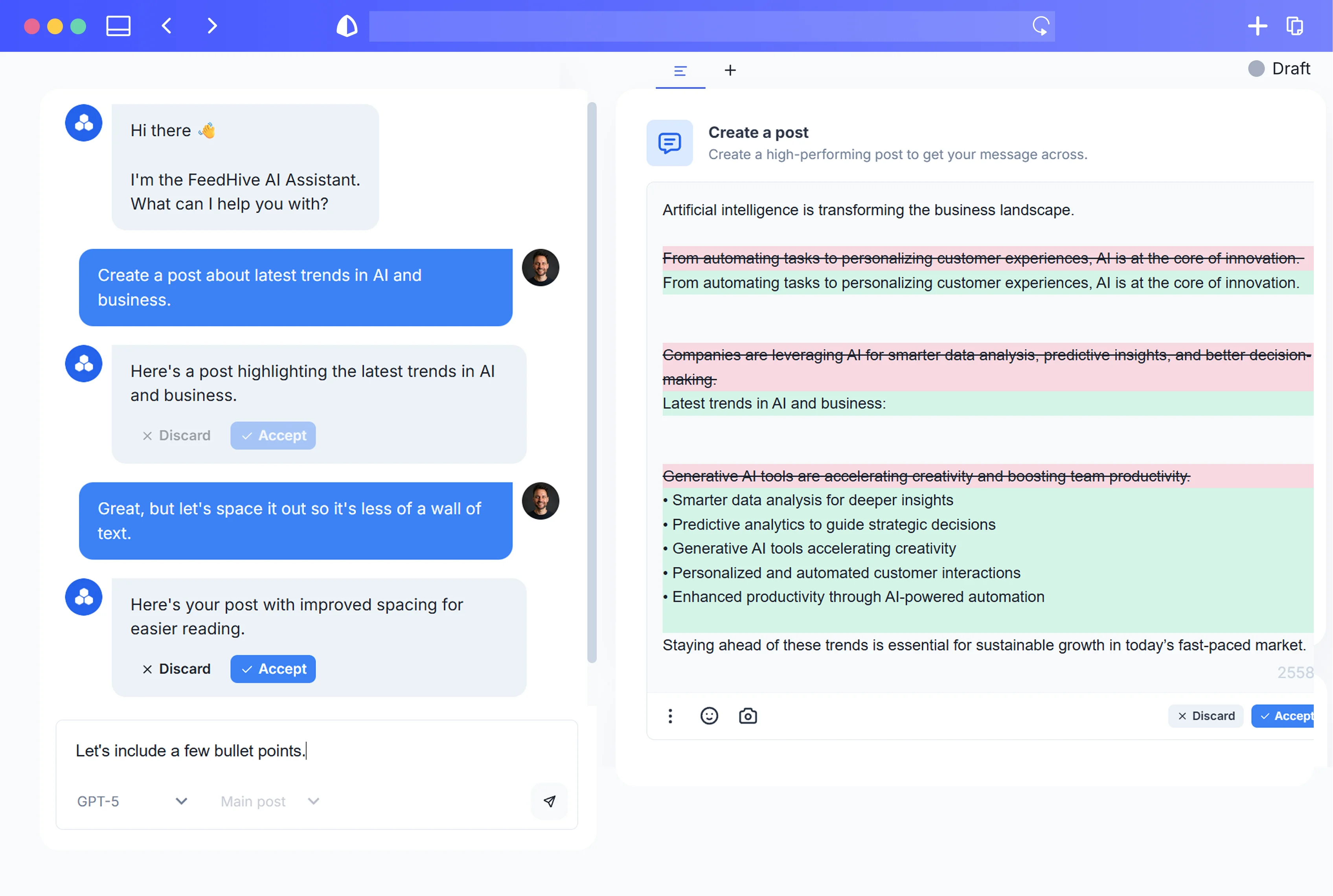
- Write the post with text, images, video or a poll. FeedHive's AI writing tools can help shape a rough idea into a LinkedIn post.
- Pick a date and time, or drop the post into a recurring posting slot so your publishing calendar keeps a steady weekly rhythm.
- Send it for approval if a colleague or client needs to sign off. Approvals and comments on drafts keep that review in the same place.
- Let it publish. FeedHive posts directly to LinkedIn at the scheduled time, and the calendar shows your profile, your Page and your other channels side by side.
Because the whole week sits in one calendar, it is easy to see which drafts have been waiting longest and give them a refresh before they go out. You can start with a 7-day free trial; see pricing for the current plans.
Why can't I schedule a LinkedIn post?
If the clock icon is missing or a scheduled post did not show up, it is usually one of these:
- The post type is not supported. Events and job posts cannot be scheduled. Publish them live instead.
- The time is too close. Profile posts need at least 10 minutes of notice and Page posts at least an hour.
- The date is too far out. Nothing can be scheduled more than three months ahead natively.
- You are posting as yourself, not the Page. Switch to the Page's admin view first, and check that you are a super admin or content admin.
- The post went out at the wrong hour. LinkedIn uses your device's time zone. Check it before you schedule for an audience in another region.
- You are looking in the wrong place. Scheduled posts do not appear on your profile until they publish. Find them through Start a post, the clock icon and View all scheduled posts.
Tips for scheduling LinkedIn posts that perform
- Schedule at the times your audience is on LinkedIn. Our study of the best time to post on LinkedIn found Monday the strongest weekday and 10 am to 2 pm the most reliable window, with Thursday and late afternoon the weakest.
- Keep the queue short. In our data, posts scheduled within a week beat the account's typical post and posts scheduled one to three months out fell about 10% short.
- Format before you schedule. LinkedIn has no bold or italic button for posts. Our free LinkedIn text formatter adds them, so the post looks right when it goes live without you there to fix it.
- Be around after it publishes. Scheduling saves you the posting, not the conversation. Plan posts for times when you can answer the first comments.
- Pause the queue when the mood changes. If something big happens in your industry, hold the upcoming posts so a cheerful promo does not land at the wrong moment.
Frequently asked questions
Can you schedule posts on LinkedIn?
Yes. Click Start a post, write the post, click the clock icon, pick a date and time, click Next and then Schedule. It works on desktop and in the mobile app, for personal profiles and for company Pages, from 10 minutes to 3 months ahead.
Can I schedule LinkedIn posts for free?
Yes. LinkedIn's built-in scheduler is free for every account and handles text, image and video posts. A paid scheduler adds a calendar view, a shared queue for your profile and Page, approvals and posting to other networks.
Do scheduled posts get less views on LinkedIn?
Not because they are scheduled. In a random sample of 8,000 LinkedIn posts published through FeedHive, posts scheduled up to a week ahead got about 5% to 12% more impressions than the account's typical post. Posts written one to three months ahead got about 10% fewer, so keep your queue short and refresh older drafts.
Do scheduled posts do well on LinkedIn?
Yes, when they are fresh. Posts scheduled within a week performed above the account's usual level in our data. The ones that slipped were posts left waiting for weeks or months.
Where do I find my scheduled posts on LinkedIn?
On desktop, click Start a post, then the clock icon, then View all scheduled posts. In the app, tap Post, then the clock icon, then View all. Scheduled posts do not appear on your profile until they publish.
Can you edit a scheduled post on LinkedIn?
Yes. Open your scheduled posts, click the More icon on the post and choose Edit post to change the content or Modify schedule to change the time.
Can you schedule posts on a LinkedIn business page?
Yes. Super admins and content admins can schedule Page posts from the Page's admin view, with at least one hour of notice and up to three months ahead.
Why are my scheduled posts not showing up on LinkedIn?
Scheduled posts only appear in the scheduled list until they publish. If one is missing after its time, check that it was scheduled from the right profile or Page and in the right time zone, since LinkedIn uses your device's time zone.